Share the right Chrome tab with audio, choose your languages, and keep the translated captions close to the conversation.
Before you start
- Install ThomLingo, sign in and open Live translation in the extension.
- New accounts have a one-time 5-minute trial. Continued use needs your own Soniox key and available ThomLingo plan allowance. Soniox bills API usage separately.
Screenshots may use English or Vietnamese interface labels. Follow the numbered arrows and the instructions below.
1. Open the conversation and choose your languages
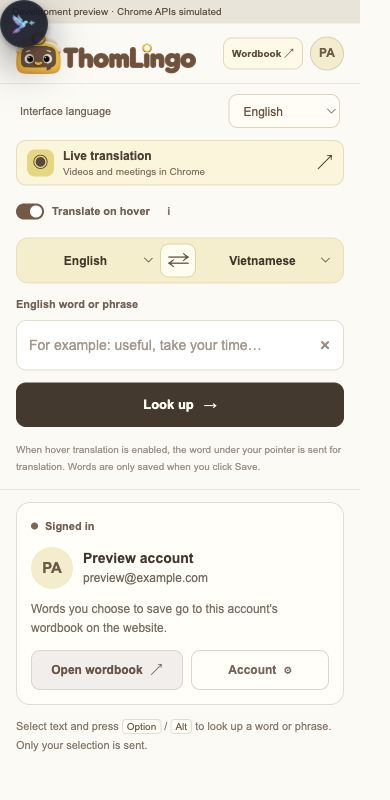
Open your meeting or video in Chrome, then open ThomLingo → Live translation. Choose the language being spoken or automatic detection, and choose the language you want to read.
For interview practice, try a short public recording first. In a real call, use translation in line with the participants’ expectations and your organization’s policies.
Enlarge the annotated screenshot
On a small screen, swipe the image sideways to see every detail.
Extension interface preview with a sample account. Open Live translation from this entry; its own panel has the live session language controls.
- Open Live translation. The language selectors below this entry are for quick word lookup, not the live session.
2. Share the tab that is actually speaking
Choose Start, select the Chrome tab containing the meeting or video and enable sharing its audio in Chrome’s picker. If you share a window without an audio track, ThomLingo will have nothing to translate.
Play a short spoken part and check that speech appears. If it does not, check the selected tab, its volume and the audio-sharing option. Capture from desktop applications or system audio depends on Chrome and your operating system.
3. Keep captions where your eyes already are
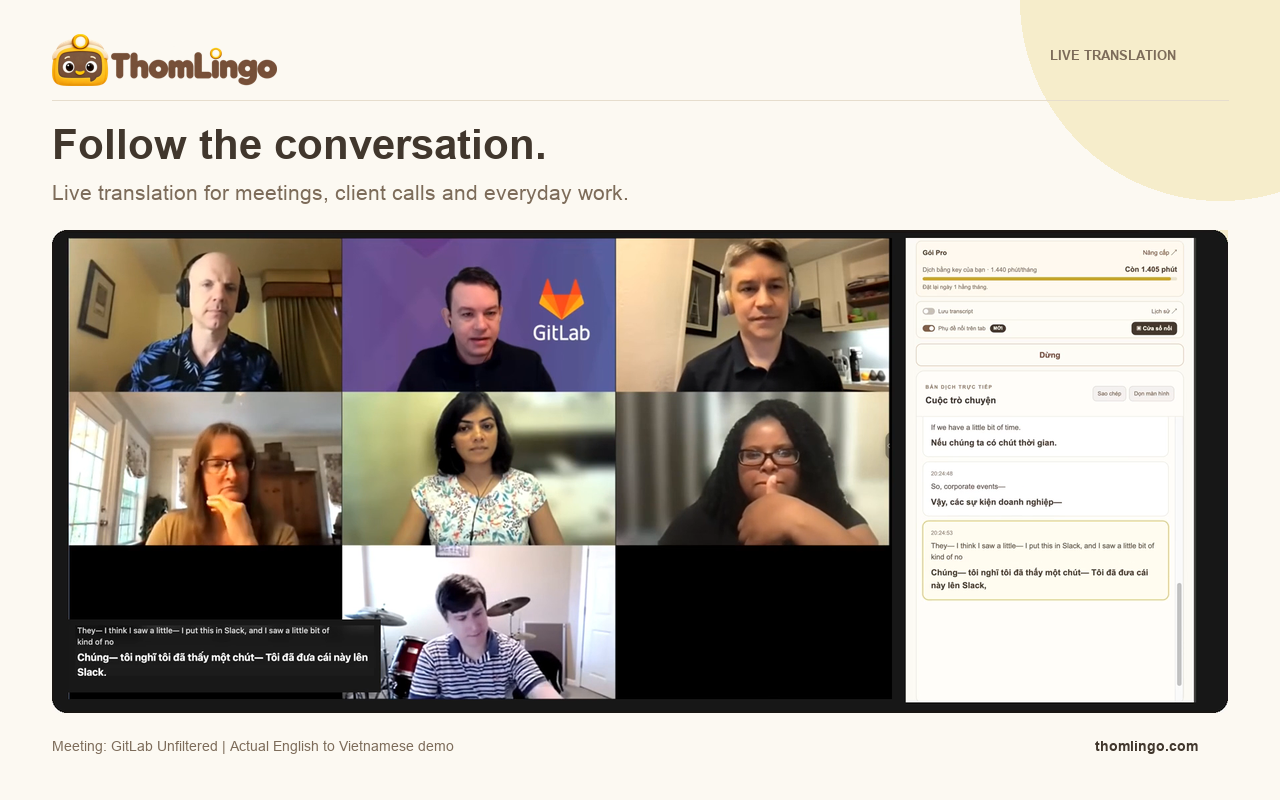
Read speech and translation together in the side panel. Enable Floating captions on tab when you want a smaller overlay closer to the content. Move the overlay to a clear area so it does not hide slides or a speaker.
Keep listening to the original audio too. The translation helps you follow meaning; it can lag behind a sentence and may revise partial speech. Overlapping voices, noise and technical terms can reduce accuracy.
Enlarge the annotated screenshot
On a small screen, swipe the image sideways to see every detail.
Actual English-to-Vietnamese demo using a public GitLab Unfiltered meeting video. The people shown are not presented as ThomLingo customers.
- Turn on Floating captions on tab in the side panel.
- Read the compact captions alongside the meeting.
- The side panel keeps the longer conversation visible.
4. End the session and keep only what you need
Stop translation when the conversation ends. Connected session time counts toward usage, including silence, so do not leave a session running in the background.
Save transcript is off by default. Enable it only if you want subsequent segments kept in your account, then revisit them in Live translation history. Important names, numbers and commitments should still be confirmed with the speaker.
Enlarge the annotated screenshot
On a small screen, swipe the image sideways to see every detail.
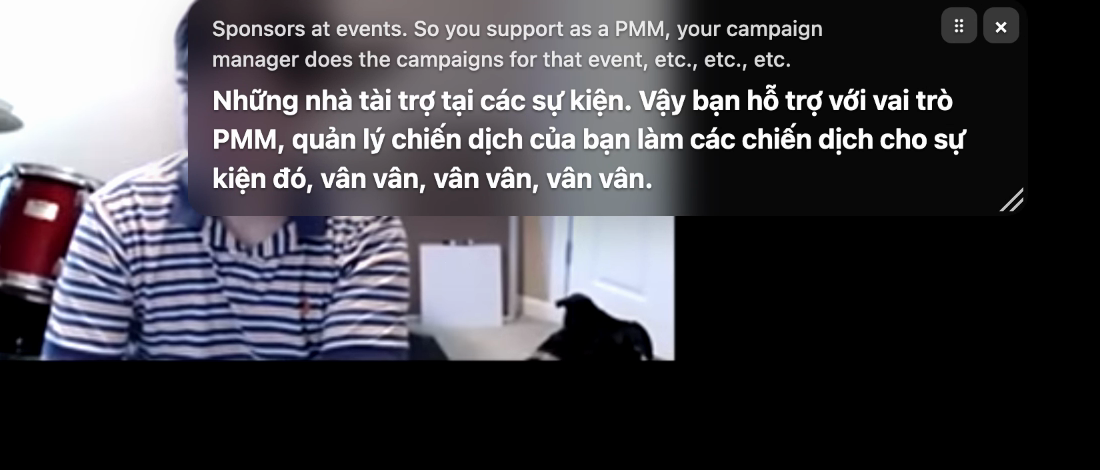
A close-up of the floating captions from the same public meeting demo.
- Read the original speech and its translated meaning together.
- Move the overlay with its handle, or close it when you no longer need it.
Useful links
Try it while you are curious.
Get the Chrome extension →