Use a project API key, keep it private, and manage Soniox usage costs in your own Soniox Console.
Before you start
- A Soniox Console account and your own ThomLingo account.
- Access to your Soniox project and a usable API balance. The Soniox consumer app subscription is separate from API usage.
Screenshots may use English or Vietnamese interface labels. Follow the numbered arrows and the instructions below.
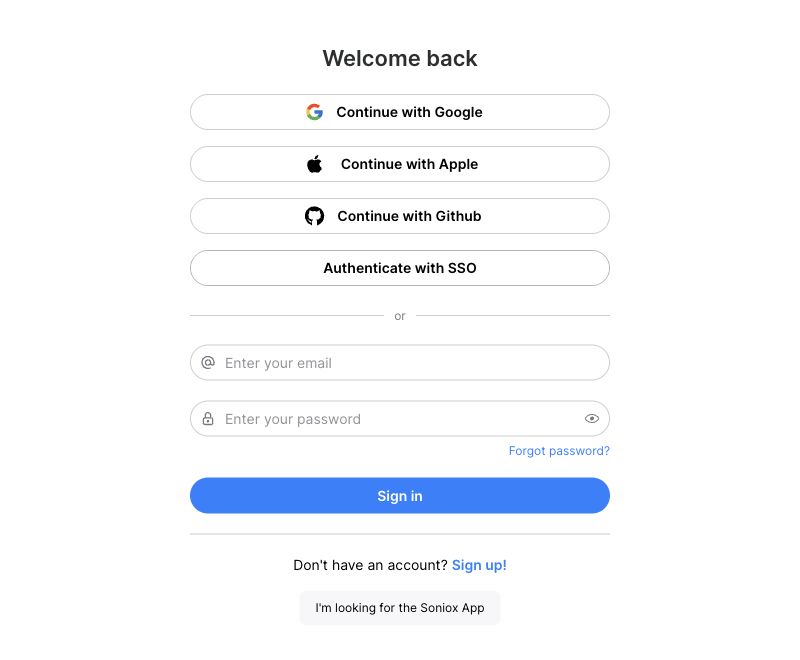
1. Open the Console, not just the Soniox app
Go to console.soniox.com and sign in, or create your own account. You complete any account terms, verification and billing steps directly with Soniox.
Check Billing and the available API balance before starting a long session. ThomLingo plan payments and Soniox API charges are separate; buying one does not fund the other. Check Soniox’s current pricing rather than assuming an old per-minute rate still applies.
Enlarge the annotated screenshot
On a small screen, swipe the image sideways to see every detail.
Public Soniox Console sign-in screen. No real email, password or API key is shown.
- Sign in to your own Soniox Console account.
- If you need an account, use the sign-up link on the Console.
2. Create a key for your project
Inside your project, open API keys and create a named project key, such as “ThomLingo”. Copy it when shown. Do not use an organization/admin key.
For live sessions, enable Temporary API keys and Speech-to-text, real-time. Usage and limits is also needed if you want ThomLingo’s usage panel to read project usage. Consult Soniox’s permission guide if labels change.
3. Save the key in your ThomLingo account
On the ThomLingo website, open Connect Soniox and sign in. Paste the project key in the key field and choose the save action. Wait for confirmation that the key works. Do not paste it into the blog or the quick word lookup box.
The long-lived key is encrypted on the ThomLingo server. The extension receives a short-lived session credential rather than your saved key. You can replace or remove the saved key from your account.
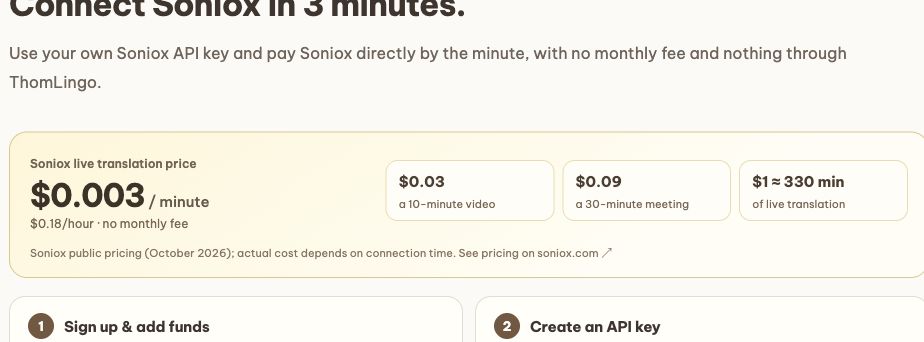
Enlarge the annotated screenshot
On a small screen, swipe the image sideways to see every detail.
Current Connect Soniox page in a signed-out view. Sign in first; the key field is available for your account after sign-in.
- The Billing link opens Soniox’s own billing area.
- Open Soniox Console to manage the project key.
- Sign in here, then paste and save your key in your account.
4. Try a minute, then check the common blockers
Open the extension → Live translation, choose your languages and start a short session with shared tab audio. If speech and translation appear, your connection is ready to use within your plan and provider limits.
Invalid key? Check that you copied the whole value. Permission error? Check the project key permissions above. No balance? Check Billing. Too many active sessions? Stop unused sessions and check provider concurrency limits. No speech at all? Recheck tab audio sharing.
Useful links
Try it while you are curious.
Open Connect Soniox →